There’s little more frustrating than settling in to enjoy your favorite music or podcast, only to have your Bluetooth speaker abruptly cut out or disconnect. This common issue can quickly turn a relaxing moment into a head-scratching tech challenge. You’re not alone in experiencing this glitch; unreliable Bluetooth connections are a frequent complaint for many wireless audio enthusiasts. The good news is that most of these problems stem from identifiable causes and often have straightforward solutions.
In this comprehensive guide, we’ll delve into the most common reasons your Bluetooth speaker might be misbehaving and provide you with clear, actionable steps to fix it. Whether you’re using a portable speaker at a backyard barbecue or relying on a home audio setup, understanding these principles will help you achieve a stable, crystal-clear connection, ensuring your soundtrack never misses a beat.
Common Reasons Your Bluetooth Speaker Keeps Disconnecting
Understanding why your Bluetooth speaker randomly disconnects is the first step toward finding a lasting solution. Several factors can interfere with this wireless technology, leading to frustrating audio dropouts. Let’s explore the primary culprits that often disrupt your listening experience.
Wireless Interference and Signal Jams
Bluetooth operates on the 2.4 GHz frequency band, a busy digital highway shared by many other household devices. This congestion is arguably the most significant cause of random disconnections and audio cutouts. When too many devices are trying to communicate on the same frequency, they create “noise” that can drown out or interrupt the delicate signal between your phone and your speaker.
- Common Sources of Interference:
- Wi-Fi routers (especially older 2.4GHz models): Often the biggest competitor for bandwidth.
- Microwave ovens: Emit strong signals on the 2.4 GHz band when in use.
- Baby monitors and cordless phones: Many also operate on this frequency.
- Other nearby Bluetooth devices: Competing speakers, headphones, mice, or keyboards.
- Even some LED light bulbs and USB 3.0 ports: Can generate electromagnetic interference.
- Solutions for Interference:
- Create Space: The simplest fix is to move your Bluetooth speaker and the source device (e.g., phone, laptop) away from potential interferers. Keep them several feet from your Wi-Fi router or microwave.
- Change Wi-Fi Channel: If your router allows, log into its settings and change the 2.4GHz channel. Channels 1, 6, and 11 typically have the least overlap and can reduce congestion.
- The 30-Second Test: Temporarily turn off other wireless devices (unplug the microwave, pause downloads) one by one while music plays. If the cutting out stops, you’ve identified the culprit.
|
Our Picks for the Best Bluetooth speaker in 2026
As an Amazon Associate I earn from qualifying purchases.
|
||
| Num | Product | Action |
|---|---|---|
| 1 | Anker Soundcore 2 Portable Bluetooth Speaker with Stereo Sound, Bluetooth 5, Bassup, IPX7 Waterproof, 24-Hour Playtime, Wireless, Speaker for Home, Outdoors, Travel |

|
| 2 | Bluetooth Speaker with HD Sound, Portable Wireless, IPX5 Waterproof, Up to 20H Playtime, TWS Pairing, BT5.3, for Home/Party/Outdoor/Beach, Electronic Gadgets, Birthday Gift (Red) |
|
| 3 | Anker Soundcore 2 Portable Bluetooth Speaker with Stereo Sound, Bluetooth 5, Bassup, IPX7 Waterproof, 24-Hour Playtime, Wireless, Speaker for Home, Outdoors, Travel- Navy Blue |
|
| 4 | Bluetooth Speaker with HD Sound, Portable Wireless, IPX5 Waterproof, Up to 20H Playtime, TWS Pairing, BT5.3, for Home/Party/Outdoor/Beach, Electronic Gadgets, Birthday Gift (Blue) |
|
| 5 | Bluetooth Speaker with HD Sound, Portable Wireless, IPX5 Waterproof, Up to 20H Playtime, TWS Pairing, BT5.3, for Home/Party/Outdoor/Beach, Electronic Gadgets, Birthday Gift (Black) |
|
| 6 | Bluetooth Speaker with HD Sound, Portable Wireless, IPX5 Waterproof, Up to 20H Playtime, TWS Pairing, BT5.3, for Home/Party/Outdoor/Beach, Electronic Gadgets, Birthday Gift (Teal) |
|
| 7 | Anker Soundcore 2 Portable Bluetooth Speaker with Stereo Sound, Bluetooth 5, Bassup, IPX7 Waterproof, 24-Hour Playtime, Wireless, Speaker for Home, Outdoors, Travel |
|
| 8 | Bluetooth Speaker with HD Sound, Portable Wireless, IPX5 Waterproof, Up to 20H Playtime, TWS Pairing, BT5.3, for Home/Party/Outdoor/Beach, Electronic Gadgets, Birthday Gift (Pink) |
|
| 9 | Anker Soundcore 2 Portable Bluetooth Speaker with Stereo Sound, Bluetooth 5, Bassup, IPX7 Waterproof, 24-Hour Playtime, Wireless, Speaker for Home, Outdoors, Travel |
|
| 10 | Soundcore Anker 2 Portable Bluetooth Speaker with Stereo Sound, Bluetooth 5, Bassup, IPX7 Waterproof, 24-Hour Playtime, Wireless, Speaker for Home, Outdoors, Travel |
|
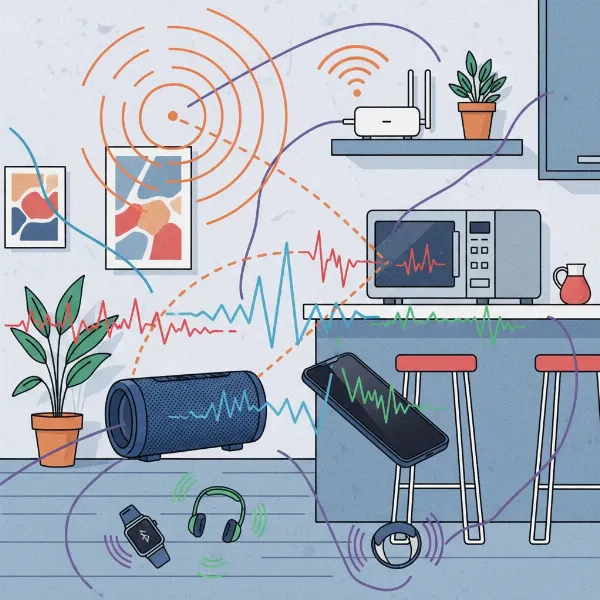 Bluetooth speaker signal struggling amidst Wi-Fi router, microwave, and other electronic devices.
Distance, Obstacles, and Range Limitations
Bluetooth, while convenient, isn’t designed for long-range communication. Its effective range is typically around 32 feet (10 meters), though this can vary depending on the environment and the specific Bluetooth version your devices use. Going beyond this limit will inevitably lead to signal degradation and disconnections. Moreover, physical obstacles between your source device and speaker can severely weaken the signal, even within the recommended range.
- What Blocks the Signal:
- Walls and Floors: Materials like concrete, brick, and metal studs are particularly effective at absorbing or reflecting radio waves. Drywall is less obstructive but still weakens the signal.
- Your Body: Human bodies are largely composed of water, which is excellent at absorbing radio waves. Simply having your body between your phone and speaker can cause dropouts.
- Other Electronics and Large Objects: Large metal objects, appliances, and even aquariums can disrupt the signal path.
- Solutions for Range and Obstacles:
- Stay Within Range: Ensure your source device and speaker are within the manufacturer’s specified distance.
- Maintain Line of Sight: Whenever possible, keep a clear, unobstructed path between your devices. If you’re moving, consider keeping your phone in a front pocket rather than a back one to minimize body obstruction.
- Test Different Locations: Try positioning your speaker and device in various spots in a room to identify areas with optimal signal strength.
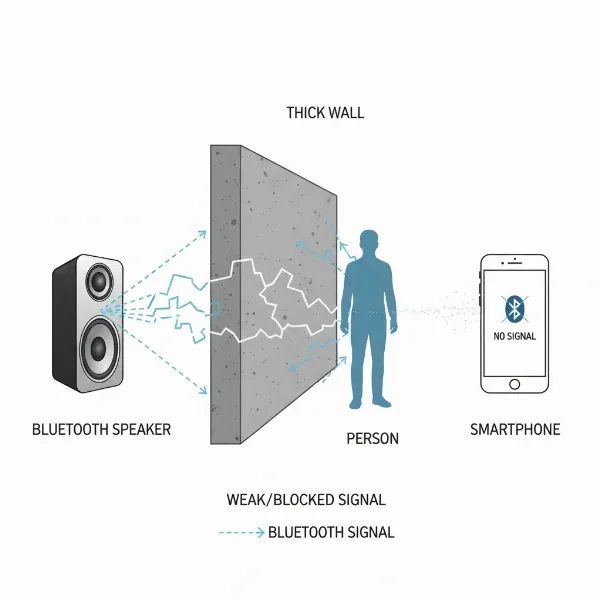 Bluetooth signal struggling to pass through walls and a person between a speaker and a phone.
Low Battery on Speaker or Source Device
A common yet often overlooked reason for unreliable Bluetooth connections is a low battery on either your speaker or the transmitting device (phone, tablet, laptop). As battery levels drop, devices often enter power-saving modes, which can reduce signal strength and processing power, leading to an unstable connection and intermittent audio.
- Explanation: Both your speaker and your connected device require sufficient power to maintain a strong, consistent Bluetooth link. When the battery is low, the device may prioritize power conservation over maintaining optimal wireless performance, resulting in dropouts or complete disconnection.
- Solutions for Low Battery:
- Ensure Full Charge: Make sure both your Bluetooth speaker and your source device are adequately charged before extended listening sessions. This simple step can resolve many connectivity issues.
Outdated Software and Firmware
Software bugs, compatibility issues, or outdated code can manifest as unexpected connection drops. Bluetooth technology is constantly evolving, and manufacturers regularly release updates to improve performance, enhance compatibility, and fix known issues. Ignoring these updates can leave your devices vulnerable to connectivity problems.
- Explanation: The operating system on your phone or computer, and the firmware on your Bluetooth speaker, contain the underlying code that manages the Bluetooth connection. Outdated versions might have bugs that cause instability or lack support for newer Bluetooth profiles, leading to poor performance.
- Solutions for Outdated Software/Firmware:
- Update Your Phone/Computer: Always ensure your source device’s operating system (iOS, Android, Windows, macOS) is up to date. Software updates often include critical Bluetooth stack improvements and bug fixes.
- Update Your Speaker’s Firmware: This step is frequently overlooked. Check the manufacturer’s website or companion app (if your speaker has one) for firmware updates. These updates can dramatically improve stability, range, and battery life.
Device Overload and Compatibility Issues
Sometimes, the problem isn’t a single issue but a combination of factors related to how your devices are being used or how well they work together. Running too many applications, having multiple Bluetooth connections, or even mismatched Bluetooth versions can strain the connection and lead to disconnections.
- Explanation:
- Too Many Apps Running: If your phone or computer is bogged down with numerous background apps, it might not allocate enough processing power or memory to maintain a stable Bluetooth audio stream.
- Multiple Bluetooth Connections: While some speakers offer multi-point connectivity, connecting to too many devices simultaneously can strain the Bluetooth module, causing instability.
- Mismatched Bluetooth Versions: While Bluetooth is generally backward compatible, significant differences in Bluetooth versions (e.g., an old speaker with a new phone) can sometimes lead to less stable connections or limit feature sets.
- Solutions for Device Overload and Compatibility:
- Close Unused Apps: On your source device, close any applications running in the background that you’re not actively using. This frees up resources for your audio stream.
- Disconnect Other Accessories: Try disconnecting other Bluetooth devices from your phone or computer while streaming to your speaker. Limit multi-point connections to one device at a time for better stability.
- Check Compatibility: If you frequently experience issues with a specific speaker, ensure it’s fully compatible with your source device. While less common with modern devices, older gadgets might struggle to maintain a robust connection.
Minor Glitches and Corrupted Connection Data
Sometimes, the issue isn’t a deep-seated problem but a temporary software glitch or corrupted connection data that can accumulate over time. These minor hiccups can often be resolved with simple reset procedures.
- Explanation: Just like any electronic device, Bluetooth modules can occasionally encounter temporary errors or develop corrupted pairing information stored in their memory or the device’s cache.
- Solutions for Minor Glitches:
- Restart Both Devices: A classic troubleshooting step, restarting both your Bluetooth speaker and the source device can clear temporary glitches and refresh their systems.
- Reset & Re-pair: This is often referred to as “the nuclear option” but is highly effective. On your source device, “forget” or “unpair” the speaker from your Bluetooth settings. Then, put your speaker into pairing mode and re-pair it from scratch. This clears any corrupted connection data.
Advanced Troubleshooting Steps
If the basic solutions don’t resolve your speaker’s disconnection issues, it might be time to delve into more advanced troubleshooting. These steps address deeper software or system-level configurations that could be interfering with your Bluetooth connection.
Resetting Your Bluetooth Speaker
A factory reset can clear all settings, including corrupted pairing data, and return your speaker to its original state. The process varies by manufacturer:
- Check Your Manual: The most reliable way to find the reset procedure is in your speaker’s user manual.
- Common Reset Methods:
- Dedicated Reset Button: Some speakers have a small, recessed reset button that you might need a paperclip to press.
- Button Combination: Many speakers reset by holding a combination of buttons (e.g., Power + Volume Down, or Bluetooth + Volume Up) for a certain duration (e.g., 5-10 seconds).
- Companion App: High-end speakers might allow a factory reset through their dedicated mobile app.
- After Reset: Once reset, you’ll need to re-pair the speaker with all your devices.
Managing Power Settings on Your Computer (Windows)
For Windows users, power management settings can sometimes aggressively cut power to Bluetooth devices to save battery, leading to disconnections.
- Open Device Manager: Right-click the Start button and select “Device Manager.”
- Locate Bluetooth Adapter: Expand the “Bluetooth” section, then right-click on your Bluetooth adapter (e.g., “Intel Wireless Bluetooth” or similar) and select “Properties.”
- Power Management Tab: Go to the “Power Management” tab.
- Uncheck Power Saving: Uncheck the box that says “Allow the computer to turn off this device to save power.” Click “OK.”
- Restart Bluetooth Support Service:
- Open the “Services” app (search for “Services” in the Start menu).
- Find “Bluetooth Support Service,” right-click it, and select “Restart.” Ensure its “Startup type” is set to “Automatic.”
Reinstalling Bluetooth Drivers
Outdated or corrupted Bluetooth drivers on your computer can cause persistent connectivity problems.
- Open Device Manager: Right-click the Start button and select “Device Manager.”
- Uninstall Driver: Expand the “Bluetooth” section, right-click on your Bluetooth adapter, and select “Uninstall device.” Check the box “Delete the driver software for this device” if available, then click “Uninstall.”
- Restart Computer: Restart your computer. Windows will usually automatically reinstall the generic Bluetooth drivers upon reboot.
- Install Latest Drivers: For optimal performance, visit your computer manufacturer’s website (e.g., Dell, HP, Lenovo) or the Bluetooth adapter manufacturer’s website (e.g., Intel, Broadcom) to download and install the latest drivers specific to your model.
Tips for Maintaining a Stable Bluetooth Connection
Prevention is often the best cure when it comes to Bluetooth connectivity. By adopting a few best practices, you can significantly reduce the chances of your speaker disconnecting in the future.
- Keep Devices Charged: Make it a habit to fully charge both your speaker and your source device before using them. This simple step eliminates low battery as a potential cause for disconnections.
- Maintain Clear Line of Sight: Always try to keep a direct, unobstructed path between your Bluetooth speaker and the device it’s connected to. Avoid placing them behind large objects, thick walls, or your body.
- Minimize Interference: Be mindful of other electronics operating on the 2.4 GHz band. Try to keep your speaker and source device away from Wi-Fi routers, microwaves, and other Bluetooth gadgets. If possible, consider using a 5 GHz Wi-Fi network for your internet, freeing up the 2.4 GHz band for Bluetooth.
- Update Regularly: Keep the operating system of your phone or computer, and the firmware of your Bluetooth speaker, updated to their latest versions. Manufacturers frequently release updates that improve Bluetooth performance and stability.
- One Device at a Time: If you have multiple Bluetooth devices, try to connect only the essential ones when listening to music. Avoid having several active Bluetooth connections to your source device if you’re experiencing dropouts.
- Restart Periodically: A quick restart of your speaker and source device every now and then can help clear out temporary software glitches and refresh connections.
Conclusion
A Bluetooth speaker that constantly disconnects can be incredibly annoying, turning your favorite tunes into an irritating stutter-fest. However, as an Admin with over a decade of hands-on experience in Bluetooth audio, I can assure you that most of these issues are solvable. By systematically troubleshooting common culprits like wireless interference, range limitations, low battery, and outdated software, you can often restore your speaker to its optimal performance.
Remember to start with the simplest solutions, like checking the battery and reducing interference, before moving on to more advanced steps such as driver updates or factory resets. With a little patience and these practical tips, you can enjoy uninterrupted, high-quality audio from your Bluetooth speaker once again. Which of these fixes will you try first to reclaim your flawless audio experience?
Frequently Asked Questions
Why does my Bluetooth speaker cut out even when fully charged and close by?
Even with a full charge and close proximity, your Bluetooth speaker can cut out due to wireless interference from other devices operating on the 2.4 GHz band, such as Wi-Fi routers or microwaves. It could also be caused by outdated firmware on your speaker or source device, or minor software glitches that a simple restart or re-pairing can often resolve.
How often should I update my Bluetooth speaker’s firmware?
You should check for and apply firmware updates for your Bluetooth speaker whenever the manufacturer releases them. These updates often include critical bug fixes, performance improvements, and enhanced compatibility that can significantly improve connection stability and overall audio quality.
Can my Wi-Fi router really affect my Bluetooth speaker’s connection?
Yes, absolutely. Both Bluetooth and many Wi-Fi routers operate on the 2.4 GHz frequency band. When your router is active and transmitting data, it can create significant interference, causing your Bluetooth speaker to experience signal dropouts or disconnect entirely. Moving your speaker away from the router or changing your Wi-Fi channel can help.
What’s the best way to reset my Bluetooth speaker if it keeps disconnecting?
The best way to reset your Bluetooth Speaker is to consult its user manual for specific instructions, as methods vary by brand and model. Generally, you might need to hold a combination of buttons (like Power and Volume Down) for several seconds, or press a recessed reset button. After a reset, you’ll need to re-pair the speaker with your devices.