Experiencing frustrating glitches with your Bluetooth speaker? Perhaps it refuses to connect, the sound is cutting out, or it’s simply unresponsive. Many of us have faced these common audio dilemmas, turning a simple listening session into a perplexing tech challenge. The good news is that often, the solution isn’t complicated: a factory reset can breathe new life into your device, restoring its peak performance and resolving persistent issues.
A factory reset essentially takes your speaker back to its original, out-of-the-box state. This process clears all stored settings, paired device lists, and any temporary errors or corrupted data that might be causing problems. It’s a powerful troubleshooting step that can help your Bluetooth speaker function smoothly again.
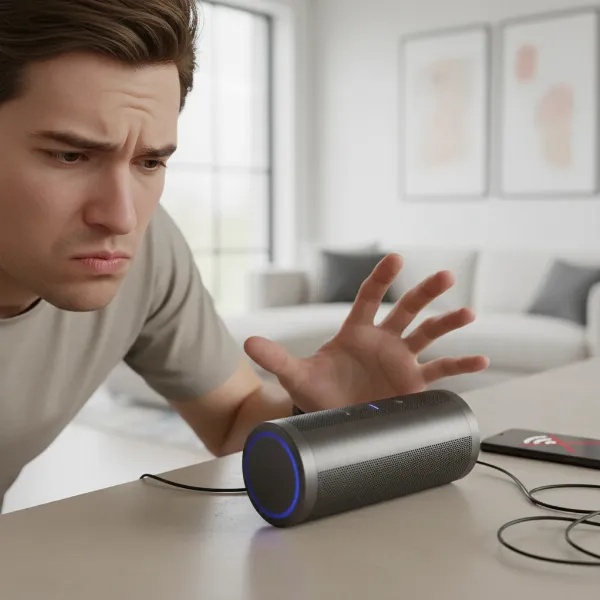 A person looks frustrated while trying to connect their Bluetooth speaker.
Why You Might Need to Reset Your Bluetooth Speaker
Resetting your Bluetooth speaker is a proactive approach to maintaining device stability and resolving various performance roadblocks. Over time, settings can become corrupted, or connectivity can get confused with multiple paired devices.
- Connectivity Problems: If your speaker struggles to pair with new devices, won’t connect to previously paired ones, or has an unstable connection, a reset can clear these digital cobwebs. It’s also useful if you need to unpair a speaker from a device you no longer have.
- Sound Quality Issues: Distorted audio, intermittent sound, or volume inconsistencies can often be attributed to software glitches that a reset can resolve.
- Speaker Unresponsiveness: When your Bluetooth speaker refuses to power on, doesn’t respond to button commands, or exhibits other unexpected behaviors, a reset is often the next logical step before considering repairs.
- Clearing Old Pairings and Settings: Resetting gives your speaker a clean slate, deleting all previous connections and custom settings. This is especially helpful if you’re selling the speaker or gifting it to someone else.
Understanding Different Types of Bluetooth Speaker Resets
While often used interchangeably, it’s helpful to distinguish between a simple power cycle (soft reset) and a factory reset. A soft reset involves turning the device off and on, clearing minor temporary glitches. A factory reset, however, is a deeper procedure that erases all user data and returns the speaker to its default settings, as if it just came out of the factory box. This guide focuses on the latter, more comprehensive reset.
General Step-by-Step Guide to Reset Your Bluetooth Speaker
The exact method to factory reset a Bluetooth speaker can vary significantly by brand and model. Therefore, the most crucial first step is always to consult your speaker’s user manual. If you don’t have the physical copy, most manufacturers provide digital versions on their websites.
Despite brand-specific differences, several common methods are widely used:
Method 1: Button Combinations (Most Common)
Many speakers rely on pressing and holding a combination of physical buttons.
- Power Off: Ensure your speaker is completely powered off and disconnected from any power source.
- Locate Buttons: Identify the specific buttons for reset. Common combinations include:
- Power + Volume Down: Press and hold these buttons simultaneously for 5 to 10 seconds. You might see an LED light flash or hear a sound indicating the reset. For instance, boAt speakers often use this combination until the LED blinks.
- Power + Bluetooth Button: For some models, such as certain Sony or Infinity (JBL) speakers, holding these two buttons together for about 5 seconds will initiate the reset.
- Play + Volume Up: JBL and some Soundcore models (like the Soundcore Motion X600) utilize this combination. Press and hold for 5-10 seconds until the speaker powers off automatically, signifying a successful reset.
Our Picks for the Best Bluetooth speaker in 2026As an Amazon Associate I earn from qualifying purchases.Num Product Action 1 Anker Soundcore 2 Portable Bluetooth Speaker with Stereo Sound, Bluetooth 5, Bassup, IPX7 Waterproof, 24-Hour Playtime, Wireless, Speaker for Home, Outdoors, Travel- Navy Blue 
2 Anker Soundcore 2 Portable Bluetooth Speaker with Stereo Sound, Bluetooth 5, Bassup, IPX7 Waterproof, 24-Hour Playtime, Wireless, Speaker for Home, Outdoors, Travel
3 Bluetooth Speaker with HD Sound, Portable Wireless, IPX5 Waterproof, Up to 20H Playtime, TWS Pairing, BT5.3, for Home/Party/Outdoor/Beach, Electronic Gadgets, Birthday Gift (Pink)
4 Bluetooth Speaker with HD Sound, Portable Wireless, IPX5 Waterproof, Up to 20H Playtime, TWS Pairing, BT5.3, for Home/Party/Outdoor/Beach, Electronic Gadgets, Birthday Gift (Blue)
5 Soundcore Anker 2 Portable Bluetooth Speaker with Stereo Sound, Bluetooth 5, Bassup, IPX7 Waterproof, 24-Hour Playtime, Wireless, Speaker for Home, Outdoors, Travel
6 Bluetooth Speaker with HD Sound, Portable Wireless, IPX5 Waterproof, Up to 20H Playtime, TWS Pairing, BT5.3, for Home/Party/Outdoor/Beach, Electronic Gadgets, Birthday Gift (Teal)
7 Bluetooth Speaker with HD Sound, Portable Wireless, IPX5 Waterproof, Up to 20H Playtime, TWS Pairing, BT5.3, for Home/Party/Outdoor/Beach, Electronic Gadgets, Birthday Gift (Black)
8 Bluetooth Speaker with HD Sound, Portable Wireless, IPX5 Waterproof, Up to 20H Playtime, TWS Pairing, BT5.3, for Home/Party/Outdoor/Beach, Electronic Gadgets, Birthday Gift (Red)
9 Anker Soundcore 2 Portable Bluetooth Speaker with Stereo Sound, Bluetooth 5, Bassup, IPX7 Waterproof, 24-Hour Playtime, Wireless, Speaker for Home, Outdoors, Travel
10 Anker Soundcore 2 Portable Bluetooth Speaker with Stereo Sound, Bluetooth 5, Bassup, IPX7 Waterproof, 24-Hour Playtime, Wireless, Speaker for Home, Outdoors, Travel
- Release and Restart: Once the speaker reacts (e.g., lights flash, sound plays, or it powers off), release the buttons. Then, press the power button to turn it back on.
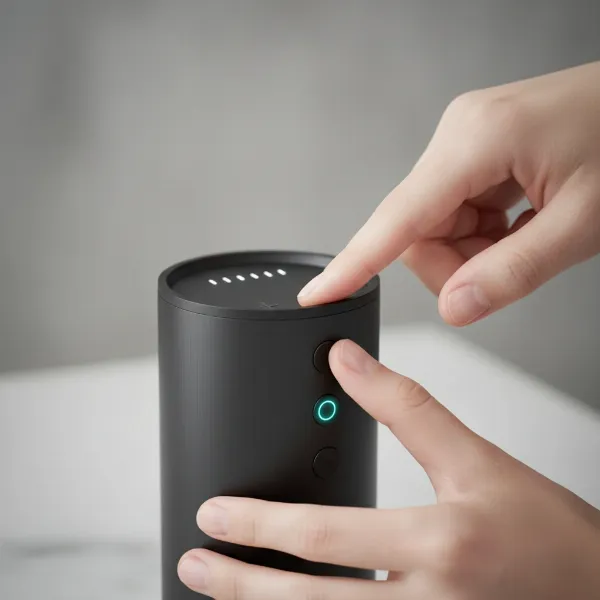 Hands pressing combination buttons on a Bluetooth speaker to perform a factory reset.
Method 2: Using a Dedicated Reset Pinhole
Some speakers feature a small, recessed reset button, often requiring a paperclip or a thin pin to press.
- Power Off: Turn off and unplug your speaker.
- Locate Pinhole: Find the tiny hole labeled “Reset” (or similar) on your speaker.
- Press and Hold: Gently insert a straightened paperclip or pin into the hole and press the button inside for a few seconds (typically 3-5 seconds). You might feel a click.
- Observe: Look for an LED flash or listen for an audible cue confirming the reset. Philips speakers, for example, often use this method until the speaker restarts.
- Restart: Remove the pin and power on your speaker.
Method 3: Via a Companion App
A growing number of smart Bluetooth speakers come with dedicated mobile applications that offer advanced controls, including a factory reset option.
- Open App: Launch the manufacturer’s app on your smartphone or tablet.
- Navigate to Settings: Look for your speaker within the app and access its settings menu.
- Find Reset Option: Search for an option like “Factory Reset,” “Restore Defaults,” or “Clear Paired Devices.”
- Confirm: Follow the on-screen prompts to confirm and complete the reset.
Method 4: Battery Drain
A less common but sometimes effective method is to completely drain the speaker’s battery.
- Let Battery Die: Allow the speaker to run out of battery naturally until it powers off.
- Recharge Fully: Plug the speaker into its charger and allow it to fully recharge without interruption.
- Test: Once fully charged, turn it on and check if the issues are resolved. This process can sometimes clear internal glitches.
How to Prepare for a Reset and What to Do Afterward
Performing a factory reset is only part of the process. Proper preparation and post-reset steps are crucial for success.
Pre-Reset Steps
- Consult Your User Manual: As mentioned, this is paramount. Your manual will provide the most accurate reset instructions for your specific model.
- Power Off and Unplug: Always ensure the speaker is turned off and disconnected from its power source before attempting a reset. If it has removable batteries, consider removing them for a few seconds.
- “Forget” the Device from Your Source Device: Before re-pairing, go into your phone, tablet, or computer’s Bluetooth settings and “forget” or “unpair” the speaker. This prevents your source device from trying to connect to old, corrupted profiles.
Post-Reset Steps
- Re-Pair Your Speaker: After the reset, your speaker will typically enter pairing mode (often indicated by a flashing LED). Go to your device’s Bluetooth settings, scan for available devices, and select your speaker to re-pair it.
- Check for Firmware Updates: If problems persist, visit the manufacturer’s website or check their app for any available firmware updates. Outdated firmware can sometimes cause compatibility or performance issues that a reset alone cannot fix.
Troubleshooting Common Issues After a Reset
Even after a reset, you might encounter lingering problems. Here’s what to do:
- Still Not Connecting:
- Ensure Bluetooth is enabled on your source device and that it’s within range.
- Completely restart both your speaker and the source device.
- Try pairing with a different device to rule out an issue with your primary device.
- Check if your speaker is fully charged.
- No Sound After Reconnection:
- Verify that the volume is turned up on both your speaker and the connected device.
- Check your device’s audio output settings to ensure the sound is directed to the Bluetooth speaker.
- Ensure the audio isn’t muted on either device.
Preventive Tips to Maximize Speaker Performance and Avoid Frequent Resets
While resets are useful, avoiding them in the first place is even better. Good habits can significantly extend your speaker’s life and performance.
- Pair One Device at a Time: Minimize connection conflicts by pairing your speaker with only one device at a time for stable connections.
- Regular Firmware Updates: If your speaker supports them, regularly check for and install firmware updates to ensure optimal performance and compatibility.
- Avoid Low Battery Use: Consistently using your speaker until the battery is critically low can affect its performance and longevity.
- Use Quality Charging Cables: Inferior charging cables can damage internal components over time. Stick to original or certified replacements.
- Keep Speaker Clean and Dry: Dust, dirt, and moisture can lead to hardware faults. Regular, gentle cleaning and avoiding exposure to liquids are essential.
- Safe Storage: Store your speaker in a safe place when not in use to prevent accidental button presses or physical damage.
Conclusion
Resetting your Bluetooth speaker to factory settings is a simple yet incredibly effective solution for a myriad of common problems, from connectivity woes to sound quality issues. By understanding the common methods and following the steps outlined, you can often restore your device’s optimal performance without needing professional help. Remember, consulting your user manual is always your best first move, and proactive maintenance habits will keep your music playing smoothly for years to come.
So, the next time your trusty Bluetooth speaker acts up, will you reach for the reset button first?
Frequently Asked Questions
Why is my Bluetooth connected but no sound?
If your Bluetooth speaker is connected but producing no sound, first check that the volume is up on both your speaker and the source device. Also, ensure the audio isn’t muted and that your device is configured to output sound through the Bluetooth speaker. A quick reset can often resolve underlying software glitches causing this issue.
Why is my Bluetooth speaker not pairing?
If your Bluetooth speaker isn’t pairing, confirm it’s in pairing mode and within range of your device, with Bluetooth enabled on both. Try “forgetting” the speaker from your device’s Bluetooth settings, then restart both devices and attempt to re-pair. A factory reset can clear old pairing data and often fixes persistent pairing problems.
Will a factory reset fix my Bluetooth speaker?
A factory reset often resolves a wide range of Bluetooth speaker issues by returning it to default settings and clearing corrupted data or glitches. While it’s a powerful troubleshooting step for connectivity, sound, and responsiveness problems, it might not fix hardware failures.
Does resetting delete all paired devices from the speaker?
Yes, performing a full factory reset on your Bluetooth Speaker will erase all previously paired devices and custom settings. You will need to re-pair your phone, laptop, or any other devices after the reset process is complete.
How do I know if the reset was successful?
A successful reset is typically indicated by an LED light flashing, an audible chime or sound, or the speaker automatically powering off and then restarting. After a reset, the speaker will usually enter pairing mode, signifying that it’s ready for a new connection and its previous settings have been cleared.