Bluetooth technology has revolutionized how we connect our devices, offering seamless wireless audio and data transfer. However, even with over a decade of hands-on experience as an Admin for bluetoothspeakerusa.com, I know the frustration of a stubborn Bluetooth connection. Whether it’s your favorite speaker, headphones, or car system, encountering pairing problems can be incredibly annoying. This comprehensive guide will walk you through common reasons for these issues and provide clear, step-by-step troubleshooting solutions for both iPhone and Android users, helping you get your devices connected effortlessly.
Common Bluetooth Pairing Challenges
Bluetooth pairing issues often stem from a few key areas: software glitches, incorrect device settings, or environmental interference. These problems can manifest in various ways, from your phone not detecting a device to failing to complete the pairing process or experiencing frequent disconnections. Understanding the potential causes is the first step toward finding a quick and effective solution.
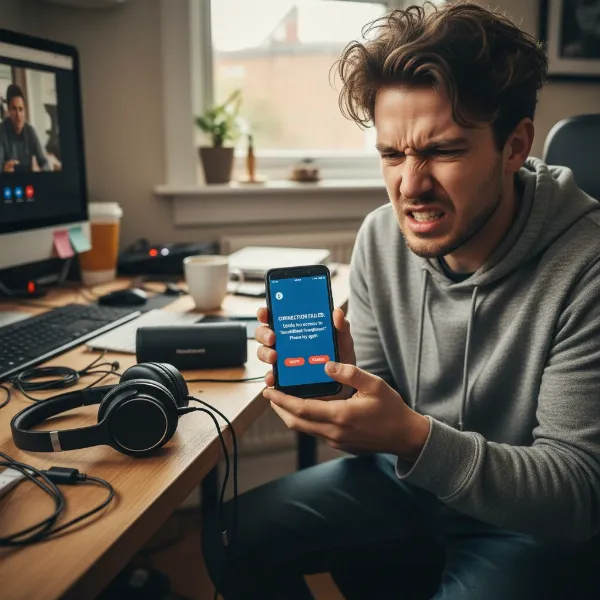 A person looking frustrated with a smartphone trying to connect to a Bluetooth device.
Essential Pre-Checks Before Troubleshooting
Before diving into specific troubleshooting steps, it’s crucial to perform a few basic checks. These simple actions can often resolve minor glitches and save you time.
- Ensure Bluetooth is ON on both devices: It might seem obvious, but always confirm that Bluetooth is enabled on both your smartphone and the accessory you’re trying to connect.
- Proximity is key: Bluetooth has a limited range, typically around 30 feet (10 meters). Make sure your phone and the Bluetooth device are close to each other, ideally within a few feet, without significant obstructions.
- Check battery levels: A low battery on either your phone or the Bluetooth accessory can prevent successful pairing or cause intermittent disconnections. Ensure both devices are adequately charged or connected to a power source.
- Put the device in pairing mode: Most Bluetooth accessories require you to put them into a specific “pairing mode” for them to be discoverable. This usually involves holding a power or Bluetooth button for a few seconds until an indicator light flashes. Consult your device’s manual if you’re unsure how to activate pairing mode.
- Disconnect from other devices: A Bluetooth accessory can typically only connect to one host device at a time. If your speaker or headphones are already paired with another phone, tablet, or computer, disconnect them before attempting to pair with your current device.
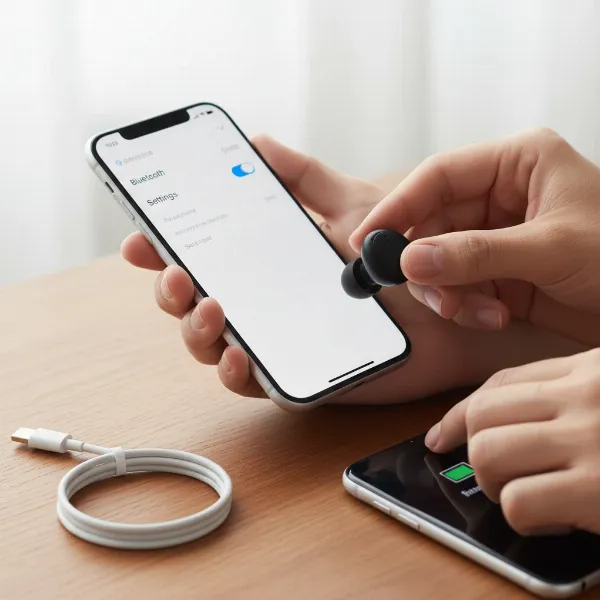 Hands performing basic Bluetooth checks: turning on Bluetooth, checking device proximity, and battery levels.
Step-by-Step Solutions for iPhone Users
If your iPhone is struggling to connect, these methods should help resolve most common Bluetooth pairing issues.
1. Toggle Bluetooth On/Off
A quick refresh of your iPhone’s Bluetooth can often clear minor software hiccups.
- Open Settings, tap Bluetooth.
- Toggle the Bluetooth switch off, wait about 5-10 seconds, then toggle it back on.
- Try pairing your device again.
|
Our Picks for the Best Bluetooth speaker in 2026
As an Amazon Associate I earn from qualifying purchases.
|
||
| Num | Product | Action |
|---|---|---|
| 1 | Anker Soundcore 2 Portable Bluetooth Speaker with Stereo Sound, Bluetooth 5, Bassup, IPX7 Waterproof, 24-Hour Playtime, Wireless, Speaker for Home, Outdoors, Travel |

|
| 2 | Bluetooth Speaker with HD Sound, Portable Wireless, IPX5 Waterproof, Up to 20H Playtime, TWS Pairing, BT5.3, for Home/Party/Outdoor/Beach, Electronic Gadgets, Birthday Gift (Pink) |
|
| 3 | Anker Soundcore 2 Portable Bluetooth Speaker with Stereo Sound, Bluetooth 5, Bassup, IPX7 Waterproof, 24-Hour Playtime, Wireless, Speaker for Home, Outdoors, Travel- Navy Blue |
|
| 4 | Bluetooth Speaker with HD Sound, Portable Wireless, IPX5 Waterproof, Up to 20H Playtime, TWS Pairing, BT5.3, for Home/Party/Outdoor/Beach, Electronic Gadgets, Birthday Gift (Teal) |
|
| 5 | Bluetooth Speaker with HD Sound, Portable Wireless, IPX5 Waterproof, Up to 20H Playtime, TWS Pairing, BT5.3, for Home/Party/Outdoor/Beach, Electronic Gadgets, Birthday Gift (Blue) |
|
| 6 | Anker Soundcore 2 Portable Bluetooth Speaker with Stereo Sound, Bluetooth 5, Bassup, IPX7 Waterproof, 24-Hour Playtime, Wireless, Speaker for Home, Outdoors, Travel |
|
| 7 | Anker Soundcore 2 Portable Bluetooth Speaker with Stereo Sound, Bluetooth 5, Bassup, IPX7 Waterproof, 24-Hour Playtime, Wireless, Speaker for Home, Outdoors, Travel |
|
| 8 | Bluetooth Speaker with HD Sound, Portable Wireless, IPX5 Waterproof, Up to 20H Playtime, TWS Pairing, BT5.3, for Home/Party/Outdoor/Beach, Electronic Gadgets, Birthday Gift (Black) |
|
| 9 | Bluetooth Speaker with HD Sound, Portable Wireless, IPX5 Waterproof, Up to 20H Playtime, TWS Pairing, BT5.3, for Home/Party/Outdoor/Beach, Electronic Gadgets, Birthday Gift (Red) |
|
| 10 | Soundcore Anker 2 Portable Bluetooth Speaker with Stereo Sound, Bluetooth 5, Bassup, IPX7 Waterproof, 24-Hour Playtime, Wireless, Speaker for Home, Outdoors, Travel |
|
2. Forget the Device and Re-Pair
If you’ve previously paired with the accessory, its stored connection data might be corrupted. Forgetting the device forces a fresh connection.
- Go to Settings > Bluetooth.
- Under “My Devices,” find the accessory you’re having trouble with.
- Tap the “i” icon next to its name.
- Select Forget This Device and confirm.
- Now, put your Bluetooth accessory back into pairing mode and try to pair it again from your iPhone’s Bluetooth settings.
3. Restart Your iPhone and the Accessory
A full restart can resolve temporary software conflicts on both devices.
- Restart your iPhone: Power it off completely, wait a moment, then turn it back on.
- Restart your Bluetooth accessory: Turn it off, then turn it back on and put it into pairing mode.
- Attempt to pair once both devices have restarted.
4. Check App Bluetooth Permissions
Some Bluetooth accessories, especially smart devices, require their companion apps to have Bluetooth access.
- Go to Settings > Privacy & Security > Bluetooth (or Settings > Privacy > Bluetooth on older iOS versions).
- Ensure that any app related to your Bluetooth accessory has Bluetooth permissions enabled.
5. Reset Network Settings
This is a more comprehensive step that clears all network configurations, including Wi-Fi passwords and cellular settings, in addition to Bluetooth. You will need to re-enter Wi-Fi passwords afterwards.
- Go to Settings > General > Transfer or Reset iPhone (or Reset on older iOS) > Reset > Reset Network Settings.
- Enter your passcode if prompted.
6. Update iOS
Outdated software can lead to compatibility issues and bugs.
- Go to Settings > General > Software Update.
- Install any available iOS updates. After the update, try pairing your Bluetooth device again.
7. Force Restart iPhone
A force restart can fix deeper system issues without erasing your data. The method varies by iPhone model:
- iPhone 8 or later (including SE 2nd & 3rd gen): Press and quickly release the Volume Up button. Press and quickly release the Volume Down button. Press and hold the Side button until you see the Apple logo.
- iPhone 7/7 Plus: Press and hold both the Volume Down button and the Sleep/Wake button simultaneously until you see the Apple logo.
- iPhone 6s or earlier (including SE 1st gen): Press and hold both the Home button and the Sleep/Wake button simultaneously until you see the Apple logo.
After the force restart, attempt to pair your device.
Step-by-Step Solutions for Android Users
For Android users facing pairing problems, these solutions are designed to cover the most frequent causes.
1. Toggle Bluetooth On/Off
Similar to iPhones, toggling Bluetooth off and on can resolve minor software glitches.
- Open Settings, tap Connected devices (or Connections depending on your Android version), then Bluetooth.
- Toggle the Bluetooth switch off, wait 5-10 seconds, then toggle it back on.
- Try pairing your device again.
2. Forget the Device and Re-Pair
If previous pairing data is corrupted, clearing it and starting fresh is often effective.
- Go to Settings > Connected devices > Bluetooth.
- Find the accessory you’re having trouble with under “Previously connected devices” or “Paired devices.”
- Tap the gear icon or “i” icon next to its name.
- Select Forget or Unpair.
- Put your Bluetooth accessory back into pairing mode and try to pair it again from your Android’s Bluetooth settings by tapping “Pair new device.”
3. Restart Your Android Phone and the Accessory
A full system refresh on both ends can often clear unexpected software hang-ups.
- Restart your Android phone: Power it off, wait a few moments, then turn it back on.
- Restart your Bluetooth accessory: Power it off, then on, and activate pairing mode.
- Once both are ready, try to establish the connection.
4. Clear Bluetooth Cache/Data
Clearing the cache and data for your phone’s Bluetooth application can resolve deeper software-related issues without affecting your paired devices.
- Go to Settings > Apps & notifications (or Apps).
- Tap See all apps (or App info).
- Find and tap on Bluetooth (you might need to show system apps by tapping the three dots menu).
- Tap Storage & cache.
- Tap Clear cache, then Clear storage (or Clear data). Note: Clearing storage/data might require you to re-pair all your Bluetooth devices.
- Restart your phone and try pairing again.
5. Reset Network Settings
This option resets Wi-Fi, mobile data, and Bluetooth settings, addressing underlying network configuration issues.
- Go to Settings > System > Reset options (or General management > Reset on Samsung devices).
- Tap Reset Wi-Fi, mobile & Bluetooth (or Reset network settings).
- Confirm the reset. You will need to reconnect to Wi-Fi networks afterwards.
6. Update Android OS
Keeping your Android operating system up to date ensures you have the latest drivers and bug fixes for Bluetooth functionality.
- Go to Settings > System > System update (or Software update on Samsung devices).
- Install any available updates. After the update, retry pairing.
7. Run Bluetooth Diagnostics (on some devices)
Some Android devices, particularly Samsung, offer built-in diagnostic tools that can check hardware functionality.
- Look for Device care or Diagnostics within your phone’s settings.
- Follow the prompts to run a diagnostic test on Bluetooth. If an issue is detected, it might provide further guidance or indicate a hardware problem.
Troubleshooting Advanced Scenarios (General)
Sometimes, the issue isn’t straightforward. Consider these factors if basic troubleshooting doesn’t work:
- Interference: Other electronic devices, Wi-Fi routers, or even physical obstructions can interfere with Bluetooth signals. Try pairing in a different location away from potential interference.
- Compatibility issues: Very old Bluetooth accessories might not be fully compatible with newer smartphone operating systems, and vice versa. Check the specifications of both devices.
- Firmware updates for the Bluetooth accessory: Just like your phone, many Bluetooth accessories, especially speakers and headphones, receive firmware updates. Check the manufacturer’s website or companion app for updates, as these can resolve known connectivity bugs.
- PIN/Passkey errors: If your device prompts for a PIN during pairing, try common defaults like “0000” or “1234.” Otherwise, refer to the accessory’s manual for the correct code.
When to Seek Professional Help
If you’ve exhausted all troubleshooting steps for both your iPhone or Android device and your Bluetooth accessory, and the problem persists, it might indicate a hardware failure. At this point, it’s advisable to:
- Contact the manufacturer of your Bluetooth accessory for support or warranty claims.
- Visit an authorized service center for your iPhone or Android device to have its Bluetooth module professionally diagnosed.
Conclusion
Encountering Bluetooth pairing issues with your iPhone or Android can be frustrating, but most problems can be resolved with a systematic approach to troubleshooting. From simple restarts and toggling Bluetooth on/off to forgetting and re-pairing devices, or even resetting network settings, these steps cover the most common solutions. Remember to keep both your phone’s operating system and your Bluetooth accessories’ firmware updated for optimal performance.
What are your go-to tricks for fixing stubborn Bluetooth connections? Share your experiences and tips below!
Frequently Asked Questions
Why is my Bluetooth device not showing up on my phone?
There are several reasons, including the device not being in pairing mode, being too far away, having a low battery, or already being connected to another device. Ensure it’s charged, close by, and actively in pairing mode.
How do I put my Bluetooth device in pairing mode?
Typically, you’ll press and hold a dedicated Bluetooth button or the power button on the accessory for a few seconds until an indicator light starts flashing. Always refer to your device’s user manual for specific instructions.
Will resetting network settings delete my data?
No, resetting network settings on your iPhone or Android will not delete personal data like photos, contacts, or apps. However, it will erase saved Wi-Fi passwords, cellular settings, and VPN configurations, so you’ll need to re-enter them.
Can too many paired devices cause issues?
While your phone can store many paired devices, having too many actively connected or frequently switching between them can sometimes lead to minor glitches. Deleting unused paired devices can occasionally help streamline connections.
What does “Forget This Device” do?
“Forget This Device” removes all pairing information your phone has stored for a specific Bluetooth accessory. This forces your phone to treat it as a brand-new device, allowing you to start the pairing process fresh and often resolving persistent connection errors.