Imagine filling your home or outdoor space with rich, immersive sound, emanating from several Bluetooth speakers working in harmony. It’s a fantastic vision, but connecting multiple Bluetooth speakers, especially those from different brands, can often feel like navigating a complex maze. While the term “daisy chain” typically refers to a wired connection linking devices sequentially, achieving a similar multi-speaker audio experience wirelessly with mixed brands presents unique challenges.
In the world of Bluetooth audio, seamless multi-speaker pairing is predominantly a feature designed for speakers of the same brand using proprietary technologies. However, that doesn’t mean your dream of a multi-brand soundscape is out of reach. With a clear understanding of Bluetooth limitations and some clever workarounds, you can often connect your diverse collection of speakers for a more expansive audio experience. This guide will walk you through the possibilities, practical methods, and common hurdles, helping you unleash the full potential of your portable sound system.
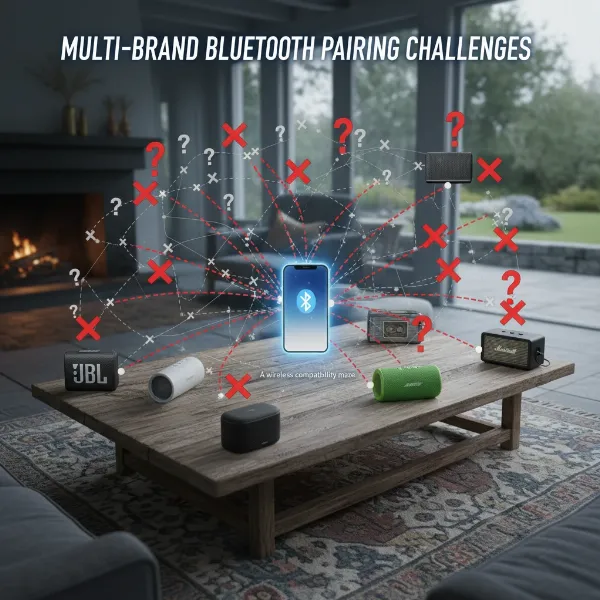 Diagram illustrating the complexity of connecting multiple different brand Bluetooth speakers wirelessly.
Understanding Bluetooth Multi-Speaker Connectivity
At its core, standard Bluetooth technology, specifically the Advanced Audio Distribution Profile (A2DP) used for audio streaming, is primarily designed for a one-to-one connection. This means your phone or tablet usually connects to a single Bluetooth speaker at a time. This limitation makes directly “daisy-chaining” different brands wirelessly a complex endeavor.
Most manufacturers like JBL (with PartyBoost and Connect+), Sony (Party Chain/Party Connect), Bose (SimpleSync), and Soundcore (PartyCast) have developed their own proprietary technologies to allow multiple speakers from their brand to connect and play in sync. These systems are optimized for their specific hardware, offering features like stereo pairing (left and right channels) or party mode (all speakers playing the same audio). Crucially, these proprietary systems are generally not cross-compatible with speakers from other brands.
Strategies for Connecting Different Brand Bluetooth Speakers
While direct, native wireless daisy-chaining of different brands is typically impossible, several creative methods can help you achieve a multi-speaker setup. Each approach has its own advantages and limitations, especially regarding synchronization and audio quality.
1. Wired Connection via Auxiliary Splitter
This is perhaps the most reliable method for achieving synchronized audio from different brand speakers, provided your speakers have an auxiliary (AUX) input. It’s the truest form of “daisy-chaining” using physical connections.
How it Works:
You use a standard 3.5mm audio splitter (Y-cable) to split the audio output from your source device (phone, laptop, MP3 player) into multiple lines. Each line then connects to the AUX input of a separate Bluetooth speaker.
Steps:
- Ensure AUX Inputs: Verify that all the Bluetooth speakers you want to connect have a 3.5mm auxiliary input port.
- Acquire a Splitter: Purchase a 3.5mm audio splitter. These come in various configurations, from simple Y-splitters for two devices to multi-port hubs for more.
- Connect: Plug the splitter into your audio source’s headphone jack. Then, use 3.5mm male-to-male audio cables to connect each output from the splitter to the AUX input of your individual Bluetooth speakers.
- Power On and Play: Turn on all speakers and select their AUX input mode. Play your audio from the source device.
Pros:
- Excellent Synchronization: Wired connections minimize latency, ensuring all speakers play in near-perfect sync.
- Brand Agnostic: Works with any speakers that have an AUX input, regardless of brand.
- Simple and Cost-Effective: Splitters and cables are inexpensive and readily available.
Cons:
- Loss of Wireless Freedom: Speakers are tethered by cables, limiting placement and portability.
- Volume Control: Each speaker’s volume usually needs to be adjusted individually.
- Cable Clutter: More speakers mean more cables.
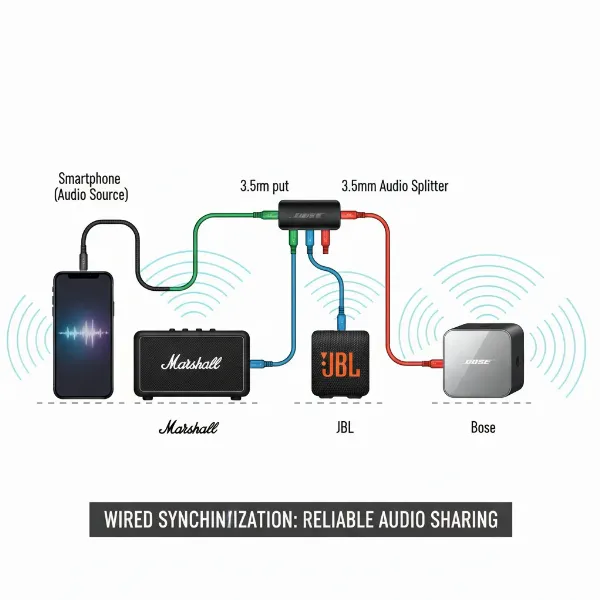 Illustration of a 3.5mm audio splitter connecting a phone to multiple auxiliary input speakers.
|
Our Picks for the Best Bluetooth speaker in 2026
As an Amazon Associate I earn from qualifying purchases.
|
||
| Num | Product | Action |
|---|---|---|
| 1 | Bluetooth Speaker with HD Sound, Portable Wireless, IPX5 Waterproof, Up to 20H Playtime, TWS Pairing, BT5.3, for Home/Party/Outdoor/Beach, Electronic Gadgets, Birthday Gift (Pink) |

|
| 2 | Bluetooth Speaker with HD Sound, Portable Wireless, IPX5 Waterproof, Up to 20H Playtime, TWS Pairing, BT5.3, for Home/Party/Outdoor/Beach, Electronic Gadgets, Birthday Gift (Red) |
|
| 3 | Bluetooth Speaker with HD Sound, Portable Wireless, IPX5 Waterproof, Up to 20H Playtime, TWS Pairing, BT5.3, for Home/Party/Outdoor/Beach, Electronic Gadgets, Birthday Gift (Black) |
|
| 4 | Bluetooth Speaker with HD Sound, Portable Wireless, IPX5 Waterproof, Up to 20H Playtime, TWS Pairing, BT5.3, for Home/Party/Outdoor/Beach, Electronic Gadgets, Birthday Gift (Blue) |
|
| 5 | Anker Soundcore 2 Portable Bluetooth Speaker with Stereo Sound, Bluetooth 5, Bassup, IPX7 Waterproof, 24-Hour Playtime, Wireless, Speaker for Home, Outdoors, Travel- Navy Blue |
|
| 6 | Anker Soundcore 2 Portable Bluetooth Speaker with Stereo Sound, Bluetooth 5, Bassup, IPX7 Waterproof, 24-Hour Playtime, Wireless, Speaker for Home, Outdoors, Travel |
|
| 7 | Bluetooth Speaker with HD Sound, Portable Wireless, IPX5 Waterproof, Up to 20H Playtime, TWS Pairing, BT5.3, for Home/Party/Outdoor/Beach, Electronic Gadgets, Birthday Gift (Teal) |
|
| 8 | Soundcore Anker 2 Portable Bluetooth Speaker with Stereo Sound, Bluetooth 5, Bassup, IPX7 Waterproof, 24-Hour Playtime, Wireless, Speaker for Home, Outdoors, Travel |
|
| 9 | Anker Soundcore 2 Portable Bluetooth Speaker with Stereo Sound, Bluetooth 5, Bassup, IPX7 Waterproof, 24-Hour Playtime, Wireless, Speaker for Home, Outdoors, Travel |
|
| 10 | Anker Soundcore 2 Portable Bluetooth Speaker with Stereo Sound, Bluetooth 5, Bassup, IPX7 Waterproof, 24-Hour Playtime, Wireless, Speaker for Home, Outdoors, Travel |
|
2. Utilizing Bluetooth Transmitters and Multiple Receivers
This method offers a wireless solution, though it requires additional hardware and may introduce latency.
How it Works:
A Bluetooth transmitter connects to your audio source device (e.g., via a 3.5mm jack or USB). This transmitter then wirelessly sends the audio signal to multiple Bluetooth receivers. Each receiver is, in turn, connected to a separate Bluetooth speaker via its AUX input.
Steps:
- Hardware Acquisition: You’ll need a Bluetooth transmitter that supports multi-point connection (output to two or more devices simultaneously) and a Bluetooth receiver for each speaker you want to connect (unless the speaker itself can act as a receiver for the transmitter, which is rare for multi-speaker scenarios across brands).
- Connect Transmitter: Plug the Bluetooth transmitter into the audio output of your source device.
- Connect Receivers: Connect each Bluetooth receiver to the AUX input of your different brand speakers.
- Pairing: Pair the Bluetooth transmitter with each Bluetooth receiver. Follow the specific instructions for your transmitter and receivers.
- Play Audio: Ensure all speakers are on and set to AUX input. Play audio from your source.
Pros:
- Wireless from Source: Your source device remains untethered.
- Brand Agnostic (Receivers): Works with any speaker having an AUX input.
Cons:
- Potential for Latency: Wireless transmission to multiple receivers can often lead to slight audio delays and synchronization issues, especially with lower-quality hardware.
- Additional Cost: Transmitters and multiple receivers can be an investment.
- Complexity: More devices mean more pairing and troubleshooting.
- Limited Connections: Many multi-point transmitters only support connecting to two Bluetooth devices. Achieving more might require an auxiliary splitter feeding into multiple dual-device transmitters, which adds significant complexity and potential for sync problems.
3. Leveraging Source Device Dual Audio (Limited)
Many modern smartphones, tablets, and computers equipped with Bluetooth 5.0 or higher can support “Dual Audio” or similar features. This allows your source device to connect and stream audio to two Bluetooth speakers simultaneously.
How it Works:
Your phone’s Bluetooth settings enable you to pair with two distinct Bluetooth speakers and send audio to both at the same time. This is a direct connection from the source to two speakers, not a “daisy chain” through the speakers themselves.
Steps (General for Android/iOS – consult your device’s manual):
- Enable Bluetooth: Turn on Bluetooth on your smartphone or tablet.
- Pair First Speaker: Go to Bluetooth settings, put your first speaker into pairing mode, and connect.
- Pair Second Speaker: Put your second speaker into pairing mode and connect.
- Activate Dual Audio: On Android, look for “Dual Audio” or “Media Output” settings within Bluetooth or sound options and select both connected speakers. On iOS, you might see “Share Audio” or select multiple outputs from the Control Center’s audio widget (though this is often limited to specific Apple/Beats devices).
- Test: Play music and check if sound is coming from both speakers.
Pros:
- No Extra Hardware (for two speakers): Uses your existing devices.
- Relatively Simple: If your device supports it, the setup is straightforward.
Cons:
- Limited to Two Speakers: This method typically only supports two Bluetooth speakers, not a larger “daisy chain.”
- Potential for Sync Issues: While better than third-party apps, minor latency can still occur between different brand speakers.
- Device Dependency: Requires a source device with Bluetooth 5.0+ and specific dual audio capabilities.
4. Third-Party Applications
Several apps aim to bridge the compatibility gap by synchronizing audio playback across multiple devices.
How it Works:
Apps like AmpMe (available on iOS and Android) instruct multiple connected phones/speakers to play the same audio stream simultaneously. The app attempts to keep them in sync, often requiring an internet connection on all devices.
Pros:
- Software-Based Solution: No additional hardware purchases needed.
- Potentially Many Devices: Can theoretically connect many devices.
Cons:
- Significant Latency/Sync Issues: This is the biggest drawback. Achieving perfect synchronization across different devices and brands wirelessly is extremely difficult, often resulting in noticeable echoes or delays.
- Internet Requirement: Many apps require an active internet connection for all participating devices.
- Variable Performance: Results can be inconsistent and highly dependent on network conditions and device processing power.
- Subscription Models: Some apps may require a premium subscription for full features.
5. Computer Operating System Solutions
For those primarily playing audio from a Windows PC or Mac, the operating system itself can sometimes offer multi-speaker output options, and third-party software can enhance this.
How it Works:
Both Windows and macOS allow users to output audio to multiple devices. On Windows, you can use built-in sound settings to select multiple output devices (though this often blends stereo channels into mono across outputs and doesn’t guarantee sync). On macOS, utilities like Audio MIDI Setup can create an Aggregate Device, combining multiple audio outputs, and paid apps like Airfoil can stream to multiple AirPlay, Bluetooth, or Chromecast devices with better synchronization.
Steps (General):
- Connect Speakers: Pair all your Bluetooth speakers to your computer.
- Configure Audio Settings:
- Windows: Right-click the speaker icon in the taskbar, go to Sound Settings, then Sound Control Panel. In the Playback tab, you might need to enable a “Stereo Mix” or similar option and configure it to output to multiple devices. This can be complex and results in mixed stereo/mono output.
- macOS: Open Audio MIDI Setup (Applications > Utilities). Click the “+” button to create an “Aggregate Device,” then select all your connected Bluetooth speakers as outputs. You can then select this Aggregate Device as your main audio output.
- Airfoil (macOS/Windows): Install and open Airfoil. It allows you to select your audio source and stream it to multiple connected Bluetooth speakers, often with better sync control than native OS features.
Pros:
- Flexible for Computer Users: Offers a good degree of control over audio routing.
- Potentially Better Sync (with Airfoil): Dedicated software like Airfoil is designed to minimize latency for multi-device streaming.
Cons:
- Not Portable: Tied to your computer setup.
- Complexity: Setting up aggregate devices or advanced sound routing requires some technical know-how.
- Cost (Airfoil): Airfoil is a paid application.
- Still Prone to Latency: Even with advanced software, perfect wireless sync across different brand Bluetooth speakers remains challenging.
Common Challenges and Solutions
Even with the best intentions, you’ll likely encounter some issues when trying to connect multiple Bluetooth speakers from different brands.
Audio Latency and Synchronization
This is the most prevalent problem. A slight delay in one speaker can ruin the listening experience.
- Solution: Wired connections (AUX splitter) offer the best sync. For wireless methods, experiment with speaker placement, minimize interference, and update speaker firmware. Third-party apps and computer solutions might offer some latency adjustment, but results vary.
Compatibility Issues
Different Bluetooth versions, audio codecs, and manufacturer-specific protocols can conflict.
- Solution: While you can’t force compatibility, understanding that direct pairing is unlikely helps manage expectations. Opt for methods like AUX splitters or Bluetooth transmitters that bypass proprietary wireless protocols.
Sound Quality Variation
Each speaker has its own sonic signature, leading to an uneven sound profile when mixed.
- Solution: Position speakers strategically. Place similar-sounding speakers together, or use EQ settings on your source device (if available) to try and balance the overall output.
Power Management
Running multiple speakers, especially wirelessly, consumes more battery power.
- Solution: Ensure all speakers are fully charged before use. If possible, keep speakers plugged into power outlets during extended listening sessions.
Tips for the Best Multi-Speaker Experience
- Prioritize Native Multi-Pairing (If Possible): If you’re building a new system or upgrading, consider investing in multiple speakers from the same brand that explicitly support multi-speaker pairing (e.g., JBL PartyBoost, Sony Party Connect). This offers the most seamless and synchronized experience.
- Quality Wired Connections: For reliability and perfect sync, don’t underestimate the power of a good old-fashioned AUX splitter and quality audio cables.
- Test Thoroughly: Before a party or event, always test your multi-speaker setup with the actual audio you plan to play to identify and resolve any sync issues or connection drops.
- Strategic Placement: Experiment with speaker placement. For a wider soundstage, place speakers further apart. For ambient background music, spread them around the room for even coverage.
- Firmware Updates: Always ensure all your Bluetooth speakers have the latest firmware updates, as manufacturers often release improvements for connectivity and performance.
The Future of Multi-Speaker Audio
The landscape of wireless audio is constantly evolving. The upcoming Bluetooth LE Audio with Auracast standard promises a revolutionary shift. Auracast will allow a single source device to broadcast audio to an unlimited number of compatible Bluetooth speakers, headphones, and other devices, regardless of brand, with robust synchronization. While widespread adoption of Auracast-compatible hardware is still on the horizon, it offers an exciting glimpse into a future where truly universal multi-speaker “daisy-chaining” becomes a seamless reality.
Conclusion
Connecting multiple Bluetooth speakers from different brands isn’t as simple as a single button press, thanks to the complexities of current Bluetooth standards and proprietary technologies. However, by understanding the limitations and employing strategic workarounds, you can still create an impressive, room-filling sound experience. Whether through reliable wired auxiliary splitters, dedicated Bluetooth transmitters, or leveraging your source device’s capabilities, the key lies in choosing the method that best balances your need for wireless convenience with audio synchronization and overall sound quality.
Don’t let varied brands deter you from expanding your audio horizons. With a little effort and the right approach, you can transform your space into a vibrant soundscape, proving that great audio doesn’t always require a single ecosystem. What’s your next step towards building your ultimate multi-speaker setup?
Frequently Asked Questions
Can I connect a JBL speaker to a Sony speaker wirelessly?
Generally, no, you cannot directly connect a JBL speaker to a Sony speaker wirelessly using their native multi-pairing features. Both brands utilize proprietary technologies (like JBL PartyBoost and Sony Party Connect) that are designed to work only with their own compatible speakers.
Why do my different brand Bluetooth speakers have audio lag when connected?
Audio lag or latency often occurs when connecting different brand Bluetooth Speakers wirelessly due to variations in their Bluetooth chipsets, processing speeds, and software implementations. Standard Bluetooth A2DP isn’t designed for multi-point synchronization across disparate hardware, leading to delays.